What is a Creative Template?
A Creative Template is a ready-made workflow for a real visual task. It gives you a useful direction without locking you into one prompt or one final image.
Creative Templates
Ready-made creative workflows give you a useful first move: a product photo, a poster, a character sheet, a social ad, or a game asset. Create the anchor, edit what matters, and keep the result moving.
A template is a starting point—not a locked result.
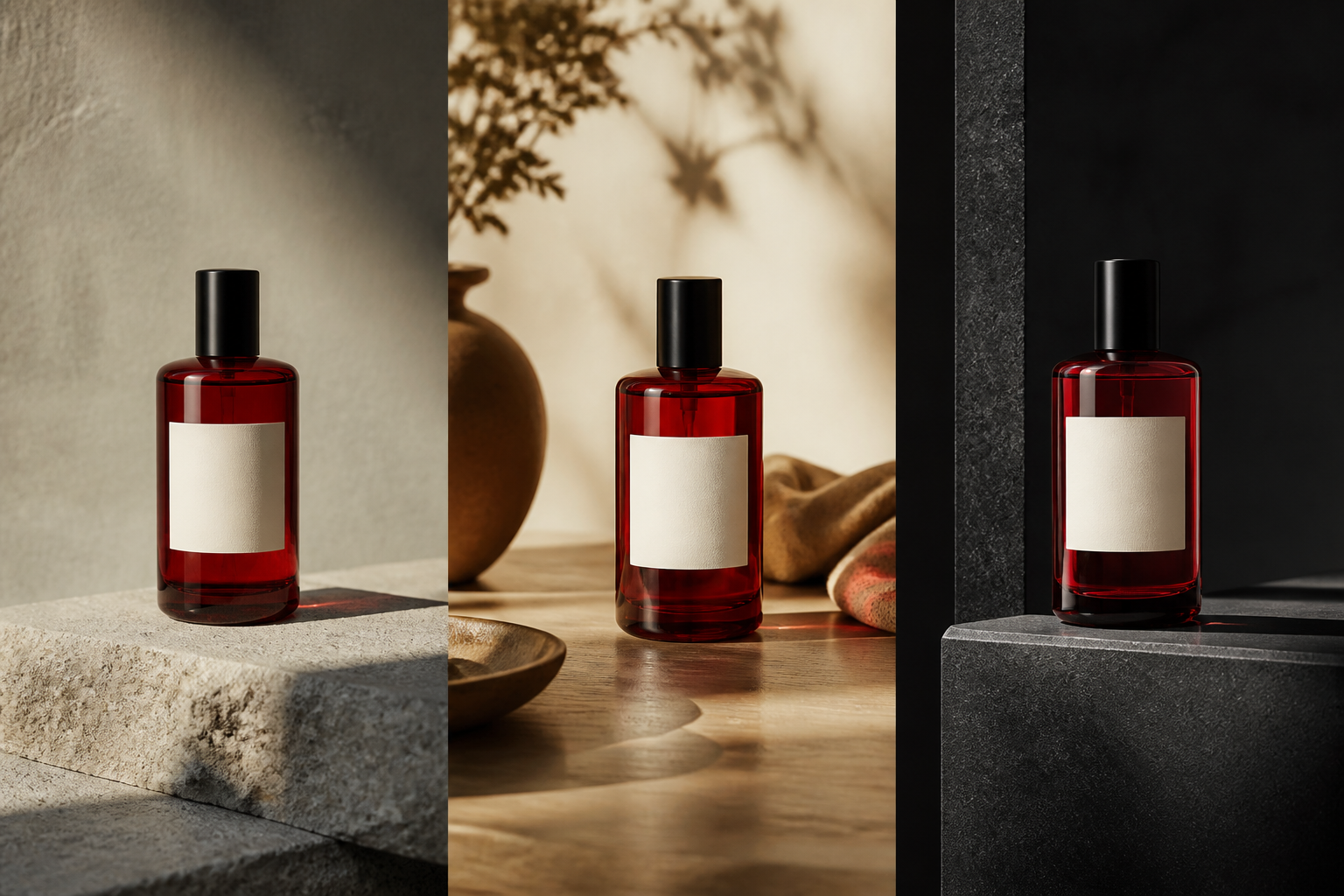
The starting point
Choose a workflow
Each workflow gives you a useful first direction and a clear next move. You can still bring your own prompt, image, or references whenever the work calls for it.
Build a studio or lifestyle scene while keeping the product recognizable.
Start with: a product reference
Continue with: backgrounds, variants, and new formats
Edit
Keep the subject and replace the setting around it for a new visual use.
Start with: an existing image · Then: object edits and transparent exports
Portrait
Create a considered portrait direction with the framing, light, and expression you need.
Start with: a portrait brief or reference · Then: new crops, expressions, and settings
Typography
Make the headline part of the composition, then refine its hierarchy in context.
Start with: the subject and exact words · Then: typography edits and new formats
Character
Establish a recognizable character and keep developing the same visual identity.
Start with: a character anchor · Then: poses, scenes, and related assets
Design
Create a compact visual with a clear silhouette and prepare it for reuse across a set.
Start with: a subject and style direction · Then: variations and background removal
Campaign
Turn one message into a social image set with the right frame for each surface.
Start with: the campaign message · Then: stories, posts, and thumbnails
Worldbuilding
Create a character, prop, environment, or item set that belongs to one world.
Start with: a world direction and anchor · Then: related assets and reusable references
One brief, many deliverables
Bring the references that matter—identity, material, environment, or style—and let Imagine Image turn them into a direction you can keep editing. The first image is useful because it can become the next one.

Keep creating
Choose the next creative decision instead of downloading a dead end. Change a detail, preserve the anchor, and make the result useful somewhere new.
A Creative Template is a ready-made workflow for a real visual task. It gives you a useful direction without locking you into one prompt or one final image.
No. Start with a custom brief or your own references whenever you already know what you want to make.
Yes. Edit a detail, create a variation, resize the composition, remove the background, or use the result as a reference for the next visual.
Choose the one closest to the job in front of you. Start from the outcome you need, then give Imagine Image the subject, relationships, style, typography, and destination format that matter.
Ready when you are
Choose a workflow, describe the direction, and keep creating until the visual has a job to do.
Create an image