How does AI object removal work?
Select the unwanted object or describe what should disappear. Imagine Image uses the surrounding visual context to reconstruct the space behind it.
AI object remover
Select a person, object, sign, distraction, or background element and let Imagine Image reconstruct the space behind it. Remove the problem without losing the image you meant to keep.
Remove and reconstruct
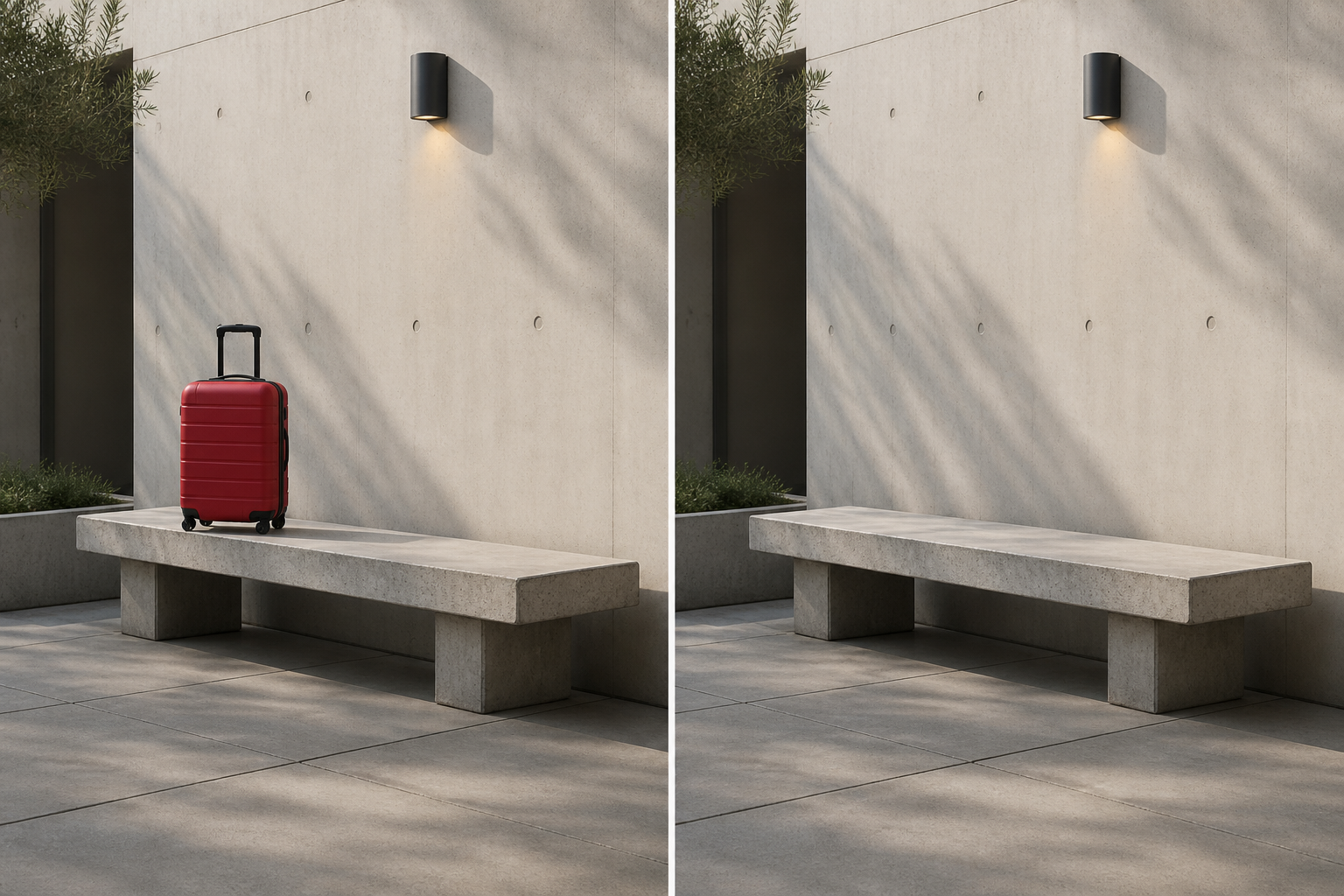
One change, intact context
Object removal is precise because the useful image is already there. Target the distraction, reconstruct only the occupied space, and keep the perspective, light, and point of view.
What can disappear
Object removal is useful when the surrounding context is already right and only one element is getting in the way.
01
Clear an extra person from a travel photo, portrait, or campaign scene.
02
Remove a parked car, passing cyclist, or other traffic from the frame.
03
Clean unwanted signage, labels, marks, or text from a visual asset.
04
Make room in an interior, product scene, or lifestyle composition.
05
Remove distractions while preserving the subject, perspective, and light.
06
Erase the small thing that makes an otherwise useful image feel unfinished.
Preserved
A useful correction
Because the image already has a point of view, the goal is not to regenerate everything. The goal is to reconstruct only the area that the unwanted element was occupying.
Once the scene is clean, continue editing, adapt the format, or use the result as a reference for the next asset.
After removal
Change the background, correct another detail, make a variation, resize the composition, or keep the cleaned image as a reference.
Select the unwanted object or describe what should disappear. Imagine Image uses the surrounding visual context to reconstruct the space behind it.
Yes. Remove people, vehicles, signs, furniture, props, or background distractions while keeping the useful subject and composition.
Yes. Target the sign or text, then let the image editor rebuild the surface, wall, street, or background that should be there instead.
Keep refining the clean scene, change the background, make a variation, resize it for a new format, or use it as a reference.
Remove and reconstruct
Start with the frame that is already close and make the unwanted element the only thing that changes.
Remove an object